

Putting everyone in the same inbox solves an access problem. It does not automatically solve an ownership problem. If three teammates can see a complaint and none knows who should answer, the customer still waits. A useful setup makes the next action visible before you add complicated routing.
1. Map the work before you connect channels
List the addresses, numbers and social accounts customers already use. Beside each one, write its current owner, typical requests, coverage hours and any promised response expectations. Include the unofficial channels people have started answering from their own phones; otherwise work can remain invisible after launch.
Choose one starting queue with a manageable mix of requests. Moving every channel at once makes it harder to distinguish an integration problem from an unfamiliar workflow. Your first milestone is that the team can reliably receive, own and complete work in the new queue.
2. Define what an owner must do
The owner is the person accountable for moving the conversation forward. That does not mean they must personally fix every issue. If Finance must investigate, the owner asks Finance, records the dependency and updates the customer. A conversation should not become ownerless because another team has expertise.
| Situation | Responsible person | Next action |
|---|---|---|
| New request | Queue triage owner | Assign it or answer it |
| Specialist investigation | Named conversation owner | Record the dependency and update time |
| End of shift | Outgoing owner until accepted | Leave a note and confirm the handoff |
| Owner absent | Designated backup | Review urgent and overdue promises |
3. Keep labels small and useful
Start with labels you will actually use to route work or make a decision: delivery, billing, technical question and product feedback, for example. Document whether a label describes the reason for contact, urgency or an outcome. Mixing those meanings makes reporting difficult later.
Do not create a label for every unusual case. Review the first week’s conversations and add a category only when the distinction will change an action or answer an important question. A short, consistently applied list is more useful than an impressive taxonomy nobody trusts.
4. Agree what waiting means
A customer who has not replied and a business waiting on an internal approval are different situations. Give the team a way to tell them apart in the workflow you use. Record the dependency and next review time in a note or task rather than assuming a generic pending state tells the whole story.
When you promise an update, make the timing specific and realistic. “We will update you tomorrow afternoon” creates a responsibility the team can check. “We are looking into it” gives the next shift little guidance. The customer should know what happens next even if the final answer is not ready.
5. Run a small launch rehearsal
- Send a sample enquiry from each connected channel and check that it reaches the intended queue.
- Have two agents open it and agree who replies; verify that internal notes stay internal.
- Transfer it to a specialist and record what has already been checked.
- Simulate an absent owner and an end-of-shift handoff.
- Resolve and reopen the conversation so the team understands both states.
Use Ruut Chat to evaluate the shared workspace against this checklist. Confirm the assignment and team capabilities available in your chosen plan. Write down any step your team still performs manually instead of quietly assuming the software handles it.
Review the first week
Sample missed messages, duplicate replies and unclear handoffs. Ask whether each failure came from missing coverage, confusing ownership or a configuration issue. Fix that specific cause. Adding another routing rule will not help if nobody is accountable for checking the queue.
Continue with seven support automation rules for a practical next step.
Rehearse a shift change
Give the outgoing agent a case with one unresolved delivery promise. Ask them to leave an internal summary containing the customer’s goal, what was checked, what was promised and the next deadline. The incoming agent should be able to continue from that summary without a separate chat with the outgoing teammate. If they cannot, improve the handoff format before adding more inbox rules.
Evaluating software for this workflow? Read Ruut vs Front for package considerations and a practical demonstration checklist.
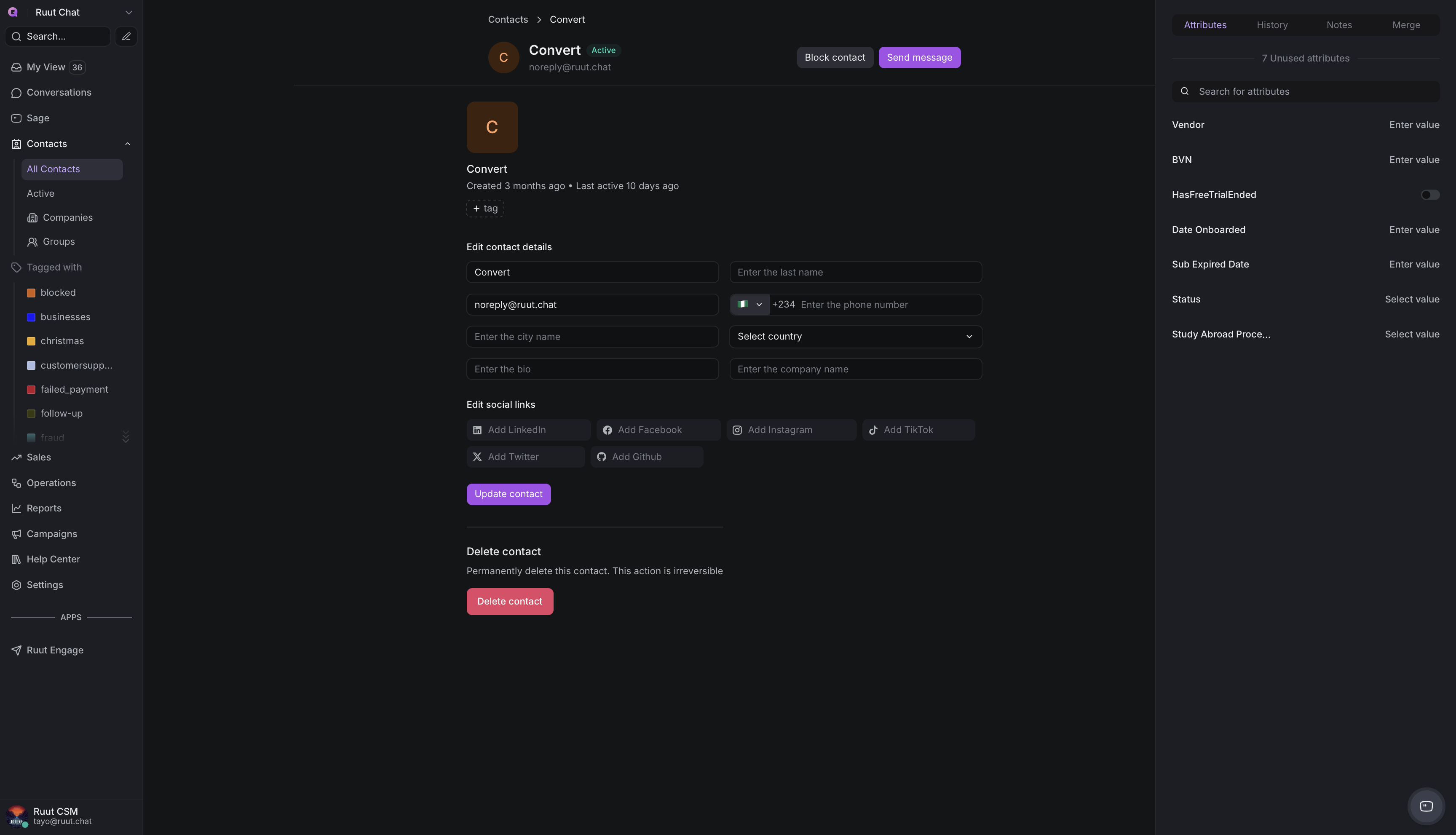
Cover artwork: AI-generated editorial imagery for Ruut. People and settings are illustrative; product screenshots in this guide show the actual Ruut interface.
Frequently asked questions
Should every agent see every conversation?
Not necessarily. Give people the access their responsibilities require and confirm your plan’s permission options.
How many labels should we start with?
Enough to support real routing and reporting decisions. Begin small and add a label when you can explain how it will be used.
Does assigning a chat mean it is being worked on?
No. Agree when owners must review their work and what evidence shows a next action is in progress.



No comments yet.